
How to Clean Your PC: The Complete Guide for Better Performance
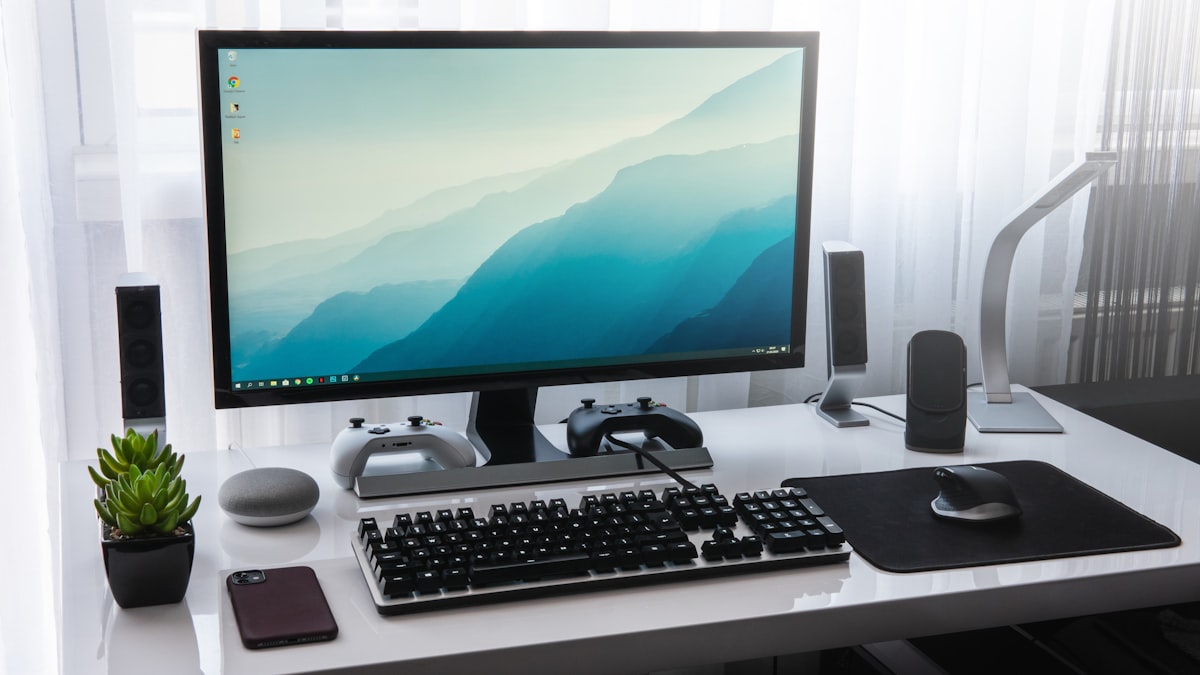
Keeping your computer clean might not be the most glamorous task, but it's one of the most important things you can do to keep it running smoothly. Whether you're using a desktop tower under your desk or a laptop on the kitchen table, dust, grime, and clutter build up over time — and the results can be surprisingly damaging.
This guide walks you through everything you need to know about cleaning your PC, from the physical hardware to the digital junk clogging up your storage. Let's get into it.
Why Cleaning Your PC Actually Matters
A lot of people don't think about cleaning their computer until something goes wrong. By then, it might be too late to avoid a repair bill. Here's why regular cleaning should be part of your routine:
- Overheating: Dust clogs fans and vents, trapping heat inside your computer. This forces components to work harder and can lead to thermal throttling — where your PC deliberately slows itself down to cool off.
- Hardware failure: Over time, excessive heat caused by dust buildup can permanently damage your CPU, GPU, or motherboard.
- Slower performance: Digital clutter like temporary files, bloatware, and fragmented storage can significantly slow down your system.
- Shorter lifespan: A well-maintained PC can last 7–10 years. A neglected one might struggle after three or four.
The good news? Most of this is completely preventable with a bit of regular maintenance.
What You'll Need Before You Start
Before diving in, gather the right tools. Using the wrong equipment (like a household vacuum directly on your components) can cause serious damage.
For Physical Cleaning:
- Compressed air canister (available at most electronics or office supply stores)
- Microfibre cloths
- Isopropyl alcohol (90% or higher)
- Cotton swabs
- Small Phillips head screwdriver
- Anti-static wrist strap (optional but recommended)
For Digital Cleaning:
- A reputable free tool like CCleaner or the built-in Windows Disk Cleanup
- Malwarebytes (free version is fine for a basic scan)
- Your operating system's built-in task manager and startup manager
Step-by-Step: Cleaning the Inside of Your Desktop PC
This is where most of the damage happens, and where cleaning makes the biggest difference. Follow these steps carefully.
Step 1: Power Down and Unplug Everything
Always shut down your computer completely before opening it. Don't just put it to sleep — fully power it off and unplug it from the wall. Wait a minute or two for any residual charge to dissipate.
Step 2: Take It Outside (Seriously)
When you blast dust out of your PC with compressed air, it goes somewhere. Do this outside or in a well-ventilated space to avoid just redistributing the dust around your room.
Step 3: Open the Case
Most desktop towers have a side panel that slides or swings open. Remove it using your screwdriver if needed. Once open, take a moment to look inside — if you can see visible dust bunnies on the fans or a grey coating over everything, it's well overdue for a clean.
Step 4: Use Compressed Air in Short Bursts
Hold the can upright and use short, controlled bursts of air. Focus on:
- CPU cooler and heatsink — this is usually the biggest dust collector
- Graphics card fans
- Case fans (hold the fan blade still while blasting so it doesn't spin too fast and damage the bearings)
- Power supply vents
- Any filters on the case
Don't shake the can or tilt it too far — this can release liquid propellant onto your components.
Step 5: Wipe Down Surfaces
Use a dry microfibre cloth or a cotton swab lightly dampened with isopropyl alcohol to wipe down any stubborn grime. Avoid touching the gold contacts on RAM sticks or PCIe cards.
Step 6: Reassemble and Test
Once everything looks clean, put the side panel back on, reconnect your cables, and boot it up. Many people are genuinely surprised by how much quieter their PC runs after a good clean — and how much cooler it stays under load.
Cleaning a Laptop: What's Different
Laptops are trickier because they're more compact and harder to open. Here's a practical approach:
- External vents: Use compressed air to blow into the exhaust vents (usually on the sides or rear). You'll often see dust come flying out.
- Keyboard: Turn it upside down and gently tap the back. Use compressed air between the keys to dislodge crumbs and debris.
- Screen: Use a dry microfibre cloth in gentle circular motions. Never spray liquid directly onto the screen.
- Opening the chassis: If you're comfortable doing so, many modern laptops allow you to remove the bottom panel to access internal fans. If you're not confident doing this, it's worth having a professional take a look.
At AlphaGeeks in Fyshwick, Canberra, we regularly service laptops that are running hot due to blocked vents and dust-clogged fans. It's one of the most common issues we see — and one of the easiest to fix.
Digital Cleaning: Clearing Out the Junk
Physical dust isn't the only thing slowing your computer down. Digital clutter is just as much of a problem.
Clear Temporary Files
Windows stores all sorts of temporary files that are no longer needed. To clear them:
- Press Windows + R, type
%temp%, and hit Enter - Select all files (Ctrl + A) and delete them
- Skip any files that are currently in use
You can also use Disk Cleanup by searching for it in the Start menu. Run it on your C: drive and tick everything you're comfortable removing.
Manage Your Startup Programs
Every time your PC boots, it loads a bunch of programs in the background — many of which you probably don't need or even recognise. To manage these:
- Press Ctrl + Shift + Esc to open Task Manager
- Click the Startup tab
- Right-click and disable anything you don't need loading at boot
This alone can dramatically speed up how quickly your PC starts.
Uninstall Software You Don't Use
Go through your installed programs and remove anything you haven't used in months. On Windows 10/11, head to Settings > Apps > Installed Apps and sort by size or last used date to find the biggest offenders.
Run a Malware Scan
Sometimes what feels like a slow PC is actually malware running in the background. Run a scan with Malwarebytes (free version works fine for this) to check for anything suspicious.
Check Your Storage Health
If your PC has a traditional hard drive (HDD) rather than a solid-state drive (SSD), it may benefit from defragmentation. Search for Defragment and Optimise Drives in Windows and run it on your HDD. Note: do not defragment an SSD — it's unnecessary and can shorten its lifespan.
How Often Should You Clean Your PC?
Here's a simple maintenance schedule to follow:
| Task | Frequency | |---|---| | Dust out fans and vents | Every 3–6 months | | Clear temporary files | Monthly | | Review startup programs | Every 6 months | | Run a malware scan | Monthly | | Full hardware inspection | Annually |
If you have pets (especially dogs or cats), or if your PC sits on the floor rather than a desk, dust it out more frequently — pet hair and floor-level dust can clog a PC in a matter of weeks.
When to Call in a Professional
Sometimes a clean-out isn't enough — or you're just not comfortable cracking open your machine. That's completely understandable. Some signs it's time to get professional help include:
- Your PC is still running hot after cleaning
- The fan is making a grinding or rattling noise
- Your system is freezing or crashing unexpectedly
- You suspect a more serious hardware issue
The team at AlphaGeeks (located at Fyshwick, ACT 2609) are experienced in diagnosing and resolving all kinds of hardware and software issues for Canberra locals. Whether it's a deep-clean service, thermal paste replacement, or a full system health check, they've got you covered.
A Few Extra Tips to Keep Things Clean Longer
- Elevate your desktop tower off the floor if possible — floor level collects far more dust
- Use dust filters on your case intakes and clean them regularly
- Keep drinks away from your workstation — a single spill can be catastrophic
- Shut down your PC properly at the end of the day rather than leaving it in sleep mode constantly
- Keep your desk area tidy — less clutter means better airflow and less dust circulating
Ready for a Fresh Start?
Cleaning your PC — both physically and digitally — is one of the best investments of time you can make as a computer owner. It extends the life of your hardware, improves performance, and can save you hundreds of dollars in repair costs down the track.
If you'd rather leave it to the experts, or if your PC needs more than just a clean, get in touch with AlphaGeeks in Fyshwick, Canberra. Give us a call on (02) 5104 0855 and we'll help get your machine back in top shape. We're passionate about helping everyday Canberrans get the most out of their technology — and we'd love to help you too.