
Mac Repair Guide: Common Issues and Solutions
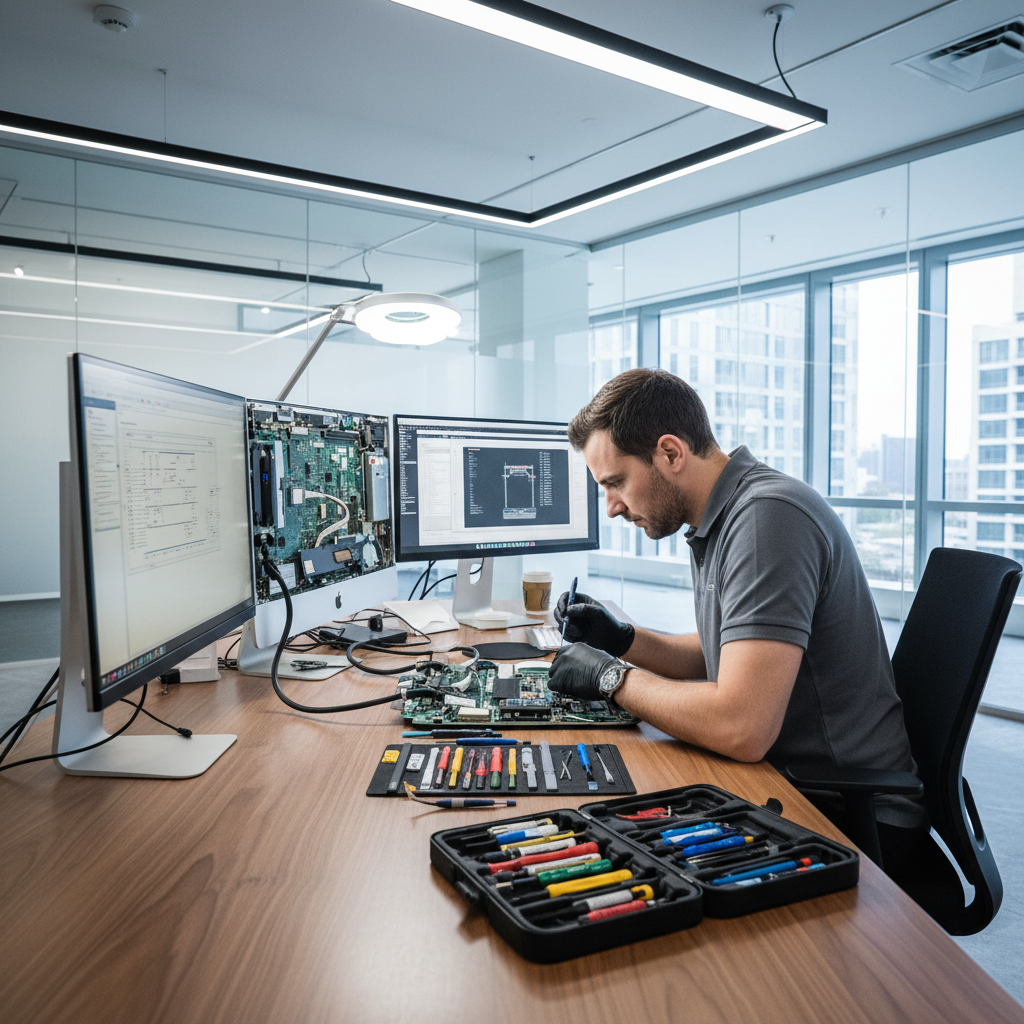
Mac Repair Guide: Common Issues and Solutions
Apple Mac computers are known for their reliability and user-friendly interface, but like all computers, they can experience problems. This guide covers the most common Mac issues and when to seek professional repair from AlphaGeeks.
Performance Issues
Slow Mac
If your Mac is running slowly, try these steps:
- Check Activity Monitor: Open Activity Monitor to see which processes consume the most CPU and memory.
- Quit resource-hungry apps: Close applications that aren't in use.
- Restart your Mac: A simple restart often resolves performance issues.
- Clear cache files: Cache files accumulate over time and consume storage space.
- Reduce visual effects: Disable animations and transparency to improve performance on older Macs.
If performance issues persist, the problem could be:
- Hard drive failure or low storage space
- Failing RAM
- Malware infection
- Thermal issues
When to seek professional help: If your Mac is still slow after these steps, bring it to AlphaGeeks for diagnosis.
Mac Running Hot
Macs have aluminum cases that conduct heat, but excessive heat indicates a problem:
- Check Activity Monitor: High CPU usage causes heat. Look for processes consuming excessive resources.
- Shut down running apps: Close unnecessary applications.
- Verify proper ventilation: Ensure your Mac has proper airflow around the vents.
- Use a cooling pad: External cooling pads can help dissipate heat.
- Clean the vents: Dust buildup restricts airflow. Use compressed air to clean vents carefully.
Professional help needed for: Internal cleaning, thermal paste replacement, or fan repair.
Storage Issues
Mac Storage Nearly Full
When storage is almost full, your Mac slows down significantly:
- Check storage usage: Apple menu > About This Mac > Storage to see what's consuming space.
- Delete large old files: Look for old video files, downloads, or project files you no longer need.
- Empty the Trash: Deleted files still consume space until Trash is emptied.
- Clear browser cache: Browsers accumulate cache files. Clear them regularly.
- Remove duplicate files: Use duplicate file finder tools to identify and remove duplicates.
- Uninstall unused apps: Drag unused applications to Trash.
Mac Running Out of Space
If you need more space:
- External storage: Connect an external hard drive or SSD for additional storage.
- Cloud services: Use iCloud, OneDrive, or Google Drive to store files in the cloud.
- Upgrade your drive: If you have a traditional hard drive, consider upgrading to an SSD for better performance and capacity options.
Connectivity Problems
WiFi Issues
- Restart your Mac: Hold Power button until the shutdown window appears, then click Restart.
- Forget the network: Go to System Preferences > Network > WiFi > Advanced, select your network, and click the minus (-) button. Rejoin the network.
- Restart your router: Unplug your router for 30 seconds, then plug it back in.
- Check WiFi password: Ensure you're entering the correct WiFi password.
- Check other devices: If other devices can't connect either, the problem is with your router, not your Mac.
When to seek professional help: If WiFi still doesn't work, the WiFi card may need replacement.
Bluetooth Issues
- Remove and re-pair devices: Go to System Preferences > Bluetooth, click the X next to your device, then pair it again.
- Restart Bluetooth: Remove the battery from your Bluetooth device for 30 seconds, then reinsert.
- Keep devices close: Move your Mac closer to the Bluetooth device.
- Check interference: WiFi, microwaves, and cordless phones can interfere with Bluetooth.
Hardware Problems
Keyboard and Trackpad Issues
Mac keyboards and trackpads are reliable but can fail:
- Unresponsive keys: Try using an external keyboard to confirm the issue.
- Trackpad not responding: Try using an external mouse to confirm the issue.
- Liquid damage: If you've spilled liquid, turn off your Mac immediately and seek professional help.
- Key sticking: Try gently cleaning around stuck keys with compressed air.
Professional help needed for: Keyboard replacement, trackpad repair, or liquid damage assessment.
Screen Problems
- Dim display: Adjust brightness using brightness keys or System Preferences > Displays.
- Screen flickering: Check for software updates that might resolve the issue.
- Cracked screen: Physical damage requires professional repair or replacement.
- Dead pixels: A few dead pixels are usually covered under warranty for new Macs; multiple pixels may indicate a larger problem.
When to seek professional help: Cracks, widespread dead pixels, or persistent flickering require professional attention.
Software Issues
Mac Won't Start
- Restart in Safe Mode: Hold Shift while starting to boot in Safe Mode.
- Restart in Recovery Mode: Hold Command + R while starting to boot into Recovery Mode, where you can repair your drive.
- Check for software updates: Install any available updates in Recovery Mode.
- Reinstall macOS: If necessary, you can reinstall the operating system without losing your files.
Professional help needed for: If your Mac still won't start after these steps, hardware failure may be the culprit.
Frequent Crashes
- Check for updates: Install the latest macOS and app updates.
- Update drivers: Some apps may need updated drivers; check for updates in their preferences.
- Remove problematic apps: Recent app installations sometimes cause conflicts.
- Reset NVRAM: Restart and hold Command + Option + P + R to reset NVRAM.
- Safe Mode testing: Boot in Safe Mode to see if crashes continue.
Professional help needed for: Persistent crashes after these steps may indicate hardware problems.
Password and Security Issues
Forgotten Password
- Use Recovery Mode: Boot into Recovery Mode (Command + R at startup).
- Reset password: Use the "Reset Password" utility to create a new password.
- Alternative accounts: If another admin account exists, you can reset the password through System Preferences.
Mac Seems Infected
- Check Activity Monitor: Look for suspicious processes running.
- Review browser homepage: Malware often changes your browser homepage.
- Run antivirus software: Use Malwarebytes for Mac to scan for infections.
- Check installed applications: Look for unfamiliar applications in Applications folder.
Professional help needed for: Stubborn infections or when you suspect compromised security.
MacBook-Specific Issues
Battery Not Charging
- Check MagSafe connection: Ensure the power adapter is properly connected.
- Reset SMC (Apple Silicon Macs): Shut down, then press and hold the power button for 10 seconds.
- Reset SMC (Intel Macs): Hold Shift + Control + Option (all on left side) + Power for 10 seconds.
- Try different power outlet: The outlet or adapter may be faulty.
Professional help needed for: If these steps don't work, the battery or charging circuit may need replacement.
When to Seek Professional Help
While many Mac issues can be resolved with troubleshooting, some require professional expertise:
- Hardware failures: Strange noises, overheating, or physical damage
- Data recovery: Accidental deletion or drive failure
- Complex software issues: Persistent problems after troubleshooting
- Physical repairs: Screen replacement, keyboard repair, or liquid damage
- Performance optimization: If your Mac needs professional cleaning or optimization
Preventive Maintenance
Keep your Mac healthy:
- Regular backups: Use Time Machine to automatically backup your Mac.
- Keep software updated: Update macOS and applications regularly.
- Monitor storage: Keep at least 15% of your drive free.
- Restart occasionally: Restart your Mac weekly for optimal performance.
- Use antivirus software: Protect against malware with reputable antivirus applications.
Conclusion
Most common Mac issues can be resolved with troubleshooting, but some problems require professional diagnosis and repair. AlphaGeeks specializes in Mac repair and can quickly diagnose and fix any issues your Apple computer may experience.
For any Mac repair needs, contact AlphaGeeks today—we're here to keep your Mac running smoothly!